To use Binance Authenticator, open your Binance account’s Security settings, enable the authenticator option, add the displayed setup key to the authenticator app and confirm with its six-digit code. Save the recovery key separately before finishing. Google Authenticator is another documented option; passkeys use a different mechanism and require their own recovery planning.
This FinanceVelix guide uses official public Binance documentation and public-page checks dated October 23, 2026. Examples are explicitly hypothetical, not observations from a personal account. Menu labels and available verification methods can vary; follow your account’s current instructions.
Binance Authenticator, Google Authenticator or passkeys?
Binance Authenticator and Google Authenticator generate verification codes from a secret established during setup. The code is an additional factor, not a replacement for protecting your password and email. A passkey instead uses cryptographic credentials rather than a code you copy into a form.
| Method | Documented role | Main planning issue |
|---|---|---|
| Binance Authenticator | Generates six-digit codes; Binance describes its data storage as local to the device. | Device loss makes a separately stored recovery key especially important. |
| Google Authenticator | Binance documents adding its setup key to Google Authenticator and confirming a generated code. | Understand your app’s backup or synchronization configuration and protect any linked account. |
| Passkey | Binance documents a “Must verify using passkey” feature for supported verification flows. | Understand where the credential is available and how recovery works before requiring it. |
The storage distinction comes from Binance’s authenticator guide; the separate Google Authenticator instructions were updated December 10, 2025. Local storage reduces dependence on a cloud account, but does not protect a compromised phone or replace backups.
As a general security principle, passkeys resist ordinary credential phishing because authentication is bound to the intended service. They do not prevent every scam or unsafe authorized action. Check Binance’s passkey requirement and recovery guidance before changing that setting.
Separate login, second factor and recovery
A strong second factor cannot compensate for every weakness elsewhere. Treat access as three connected layers and avoid putting every recovery dependency on one phone.
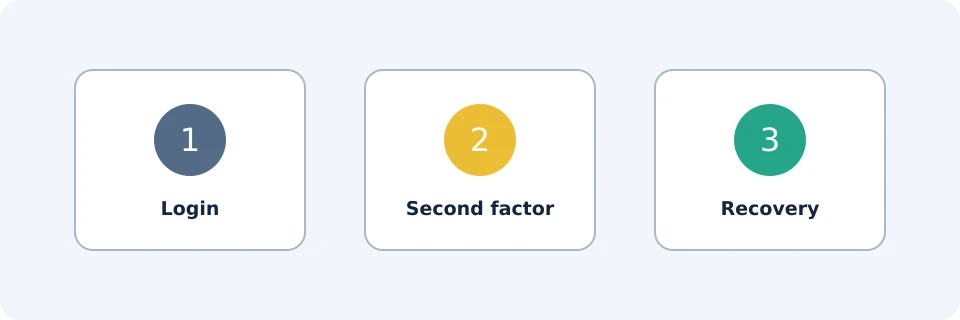
| Layer | Failure mode | Practical defense |
|---|---|---|
| Login credentials | A reused password is stolen, or email access is compromised. | Use unique passwords and secure the email account and its recovery methods. |
| Second factor | A code is entered on a fake website, or the device is lost. | Navigate directly to Binance; protect the device and plan replacement access. |
| Recovery | The only backup disappears with the phone, or someone obtains the setup key. | Keep a protected backup separately and restrict access to it. |
Hypothetical dependency example: a user keeps email access, authenticator codes and a photograph of the setup key only on one phone. Losing that phone removes all three access routes at once. A separately protected recovery record reduces that dependency; it does not guarantee account recovery.
Set up your authenticator safely
Start from the official app or a trusted bookmark, not an unsolicited message. If installation is needed, use the official download route; our Binance app download guide explains installation checks.
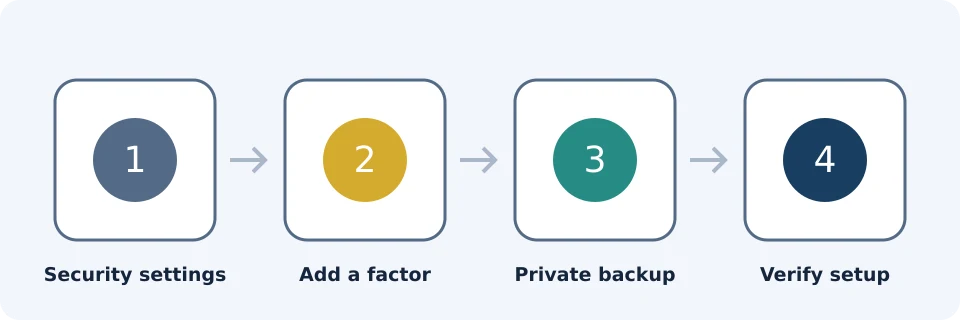
- Open Security. Binance’s website guide starts from Profile, then Security. Its app instructions also lead through the account/profile area to Security.
- Find Authenticator App. Select the available enable or management option. If a factor is already linked, follow the documented change process rather than assuming this is a fresh setup.
- Complete requested security verification. Binance may require checks before displaying the enrollment information.
- Add the setup secret. Scan the displayed QR code or enter the setup key into your chosen authenticator. For Google Authenticator, the documented route uses the add button and “Enter a setup key.”
- Store recovery material securely. Keep the setup key separately from the device before moving on. Treat the enrollment QR code as equally sensitive.
- Confirm enrollment. Return to Binance and enter the six-digit code generated for this account. Wait for confirmation that setup succeeded.
These steps follow the Binance Authenticator procedure and Google Authenticator app procedure. Do not assume adding an entry inside an authenticator completes enrollment on Binance.
Protect the setup key differently from a temporary code
A temporary code is used for a verification attempt. The setup key can recreate the code generator, so its exposure is more persistent. Do not keep it in a shared photo album, email it to yourself unprotected or send it to support.
A protected offline record or appropriately secured encrypted storage can be suitable, depending on your circumstances. “Separate” means the backup remains accessible if the phone is lost, without being casually accessible to someone else. A Binance authenticator setup key is not a self-custody wallet recovery phrase.
Device changes and code troubleshooting
If you still control the old phone, prepare the replacement before erasing anything. Check your recovery material and follow the official change flow. Confirm the new method works before disposing of the old device.
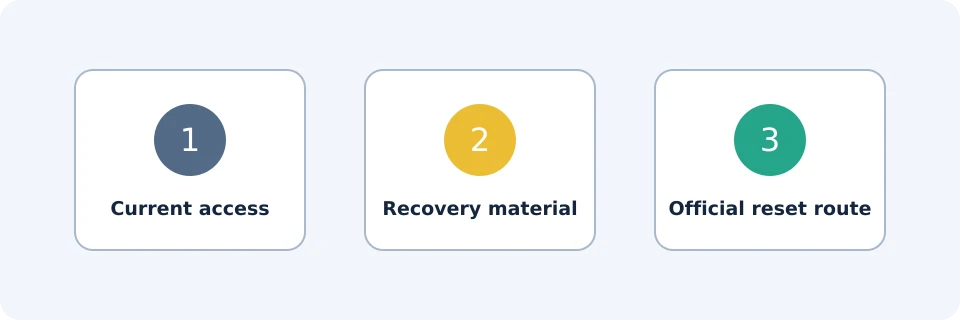
Plan around security restrictions. Binance’s authenticator guide states that withdrawals and P2P selling are disabled for 24 hours after changing the authenticator. Check the current account notice before proceeding; do not schedule an urgent transfer around an assumed immediate reset.
| Problem | Check first | Safe next step |
|---|---|---|
| Code rejected | Correct account entry, complete code and automatic device date/time. | Wait for a fresh code and submit promptly on the official page. |
| Code changes while entering | Whether you started near the end of its displayed validity. | Use the next code rather than repeatedly submitting the previous one. |
| New app has no Binance entry | Whether the existing setup secret was restored or an official change was completed. | Use your private backup or official recovery route; reinstalling alone does not recreate the secret. |
| Old phone lost, backup available | Whether the backup belongs to the current enrollment. | Restore privately on a trusted device and follow account prompts. |
| Old phone and backup unavailable | Access to other legitimate verification methods. | Use the official recovery flow; additional checks may be required. |
| Verification succeeds but withdrawal fails | Security-change restrictions and the exact account message. | Address the stated restriction rather than resetting the factor again. |
Hypothetical timing example: suppose a code has four seconds remaining, but entry and submission take seven seconds. It may expire before validation. Starting with a fresh code addresses that timing problem; it will not fix a wrong setup key or incorrect device clock.
Anti-phishing checks and emergency action
Binance’s anti-phishing code provides a recognizable code in its messages. Configure it through Security using the official anti-phishing instructions. Choose something distinct from your password or authentication secrets.
A matching code is only one signal, not proof that every link or request is safe. Open Binance independently to investigate unexpected messages. Code-based 2FA can still be phished if you type a valid code into an attacker’s form.
If you suspect account compromise
- Stop entering codes, approving requests or transferring funds. Do not send assets to a supposed “safe” address.
- Use a trusted device and navigate directly to official Binance support. Use the account-protection controls offered for your situation.
- Secure your email and change compromised or reused passwords. Avoid doing this on a device you suspect is remotely controlled.
- Review account activity and security changes where access remains available. Preserve suspicious messages and transaction references.
- Follow official recovery instructions. Do not pay an unsolicited recovery agent or install remote-control software at their request.
Give support context, not secrets
Useful troubleshooting evidence includes the exact error text, approximate time and time zone, device model, operating-system and app versions, and whether the issue began after a device change. Redact unrelated personal information from screenshots.
Never disclose passwords, authenticator setup keys, enrollment QR codes, wallet recovery phrases or temporary authentication codes to a support agent. Enter verification information only in a legitimate official flow you initiated—not in a chat or screen-sharing session.
Frequently asked questions
Does an authenticator need internet to generate codes?
Time-based authenticators generally generate codes locally without a live connection. Binance itself still needs connectivity to receive and validate your submission, and an accurate device clock matters.
Can I switch from Google Authenticator to Binance Authenticator?
Yes. Binance documents changing an existing authenticator through Security. Keep your existing access until the replacement is confirmed, and account for the documented post-change restriction.
Can a saved six-digit code restore my authenticator?
No. A temporary code is not a backup. Recovery requires the relevant setup secret or completion of Binance’s official recovery process.
Should I scan the same setup QR into two apps?
That duplicates the same secret rather than creating independent factors. It may improve availability, but also creates another place from which codes can be obtained. Make that trade-off deliberately.
Is Binance safe once 2FA is enabled?
2FA reduces some unauthorized-access risks; it does not guarantee safety. It cannot eliminate exchange custody risk, market losses or losses from transactions you authorize to a scammer.
Affiliate disclosure
FinanceVelix may earn a commission from referrals through its Binance links. This security guide does not require registration or trading and is not a recommendation to buy cryptocurrency.
Official educational references
- How to Use Binance Authenticator for 2FA With Your Binance Account and App | Binance Blog ↗Source accessed: 2026-10-23
- How to Enable Google Authenticator for 2FA on the Binance App? | Binance app login settings,Binance account settings,Binance Google Authenticator,Binance 2FA login ↗Source accessed: 2026-10-23
- Anti-phishing code setup ↗Source accessed: 2026-10-23
- Passkey verification protection ↗Source accessed: 2026-10-23
- Register on the Binance app ↗Source accessed: 2026-10-23